Daybreak Launcher on Linux – Installation Guide (Experimental)
Daybreak can be run on linux in 2 ways:
- Using the launcher compiled for Linux from releases
- Using wine to run the Windows version of Daybreak
The guide below will walk you through the steps of setting up Daybreak on Linux through Wine.
Source: Reynbow/guildwars
Install Faugus
Install Faugus via your package manager.
GitHub: faugus-launcher
Installation Steps
1. Create Guild Wars Prefix in Faugus
- Open Faugus and click the
+button in the bottom left corner - Enter a title for your game
- The Prefix will automatically fill
- Add your Guild Wars installer file (
GwSetup.exe) by clicking thesearchbutton - Optionally add shortcuts using the tick boxes
- In the Tools tab, ensure
Game Modeis ticked - Click
Okto close the window - Click the
Playbutton or double-click to run

Note: When the Guild Wars installer window appears, you can either let it complete or close it now. For speed and to ensure Daybreak handles the installation, I recommend closing it at this point.
2. Install Daybreak Launcher
-
Download Daybreak from: Releases
-
Locate your prefix:
- Right-click your Guild Wars entry in Faugus
- Click
Open prefix location - Open the
drive_cfolder
-
Create Daybreak folder:
- Create a new folder named
Daybreakindrive_c - Extract the Daybreak .zip contents to this folder

- Create a new folder named
-
Update executable path:
- Right-click your Guild Wars entry in Faugus
- Select
Edit - Click the
searchbutton and selectDaybreak.exefrom the Daybreak folder you created - The path will be under
/home/<username>/Faugus/

3. Initialize Daybreak (Required)
⚠️ IMPORTANT - Initialize Daybreak once
After setting Daybreak.exe as the executable but before continuing:
- Launch Daybreak once
- Wait 10 seconds (blank/white window is expected)
- Close it again
This initializes the WebView2 host environment inside the prefix.
4. Install Microsoft WebView2 Runtime
Download WebView2
- Go to: webview2
- Download the Evergreen Standalone Installer (x64)
- Also download the Fixed Version (this will be a .cab file)
Run the Installer
- In Faugus, open the Tools tab for your game
- Click the
Runbutton - Select
MicrosoftEdgeWebView2RuntimeInstallerX64.exethat you downloaded - Run the installer
- It may show an error or close/crash when finished - this is normal
Extract Fixed Version Files
-
Extract the .cab file contents to a new folder:
drive_c/Program Files (x86)/Microsoft/EdgeWebView/

5. Configure Registry
Download Registry File
- Download the registry file and place it in your
drive_cfolder
Registry file preview:
[HKEY_LOCAL_MACHINE\Software\Microsoft\EdgeUpdate]
"pv"="143.0.3650.66"
"st"=dword:00000001
"doNotSandbox"=dword:00000001

[HKEY_LOCAL_MACHINE\Software\Microsoft\EdgeWebView]
"pv"="143.0.3650.66"

[HKEY_CURRENT_USER\Software\Microsoft\Edge\WebView\Rendering]
"DisableGpu"=dword:00000001

Import Registry File
-
In Faugus, open the Tools tab
-
Click the
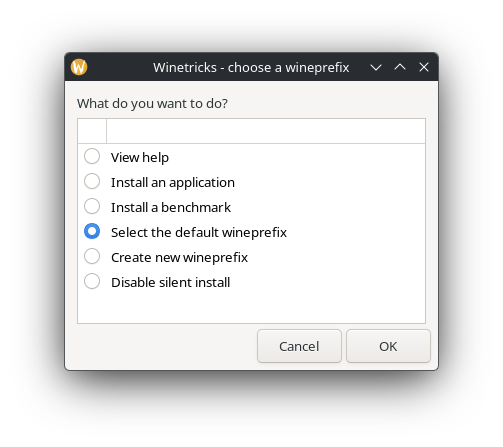
Winetricksbutton in the bottom right -
Click
OkwithSelect the default wineprefixchecked
-
Select
regeditand clickOk

-
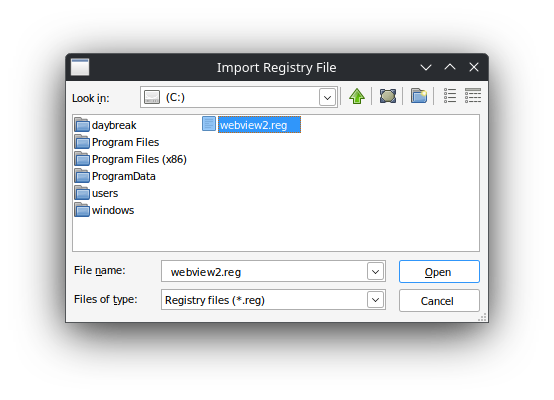
Click Registry → Import Registry File...

-
Choose the
webview2.regfile you downloaded earlier -
After import completes, close the registry


6. Install .NET Desktop Runtime
-
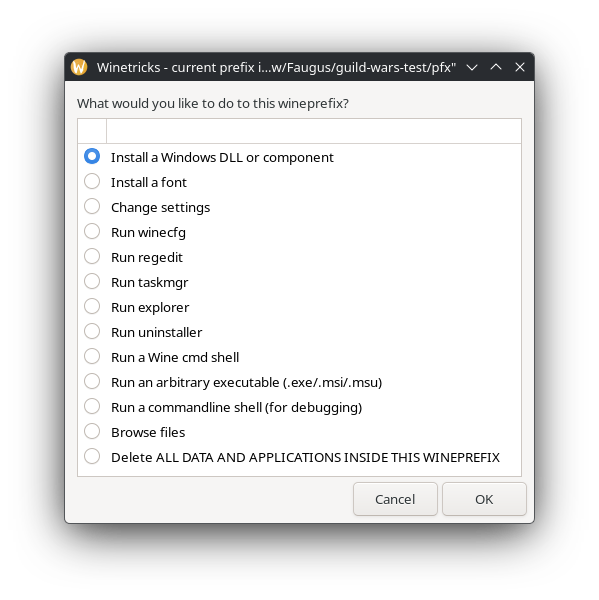
In Winetricks, select
Install a Windows DLL or component

-
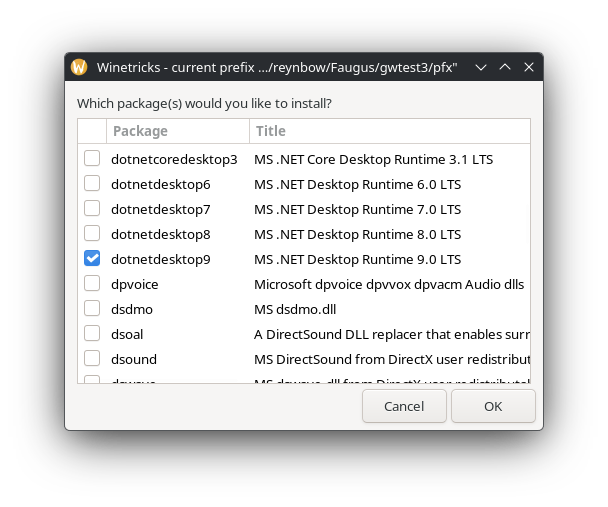
Select
dotnetdesktop9from the list and clickOk

You're Done! 🎉
Daybreak should now work under Linux!
Next Steps
- Point Daybreak to your existing Guild Wars installation, or
- Have Daybreak install Guild Wars for you in its prefix
Daybreak will handle your mods and GWToolbox entirely.
Mods for gMod: Player-made Modifications