 amacocian
ad749d801a
amacocian
ad749d801a
Closes #187
Closes #188

Minimap performance improvements
Add context menues for main player and living entities
Daybreak
Custom client for Guildwars. Requires webview2 runtime https://go.microsoft.com/fwlink/p/?LinkId=2124703.
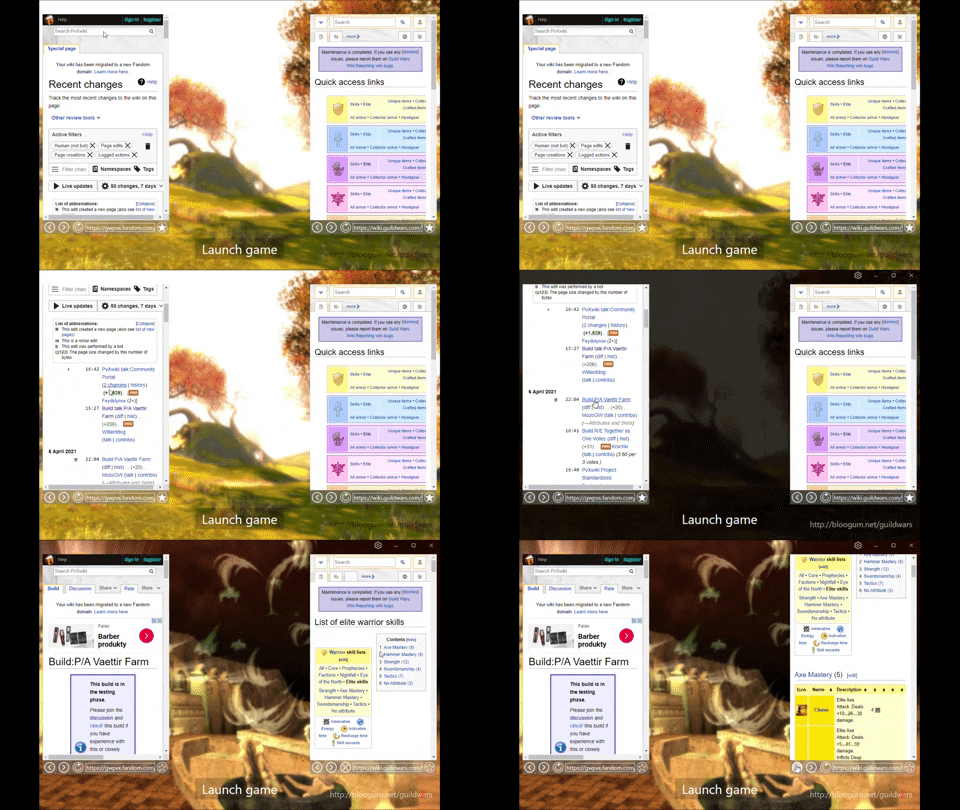
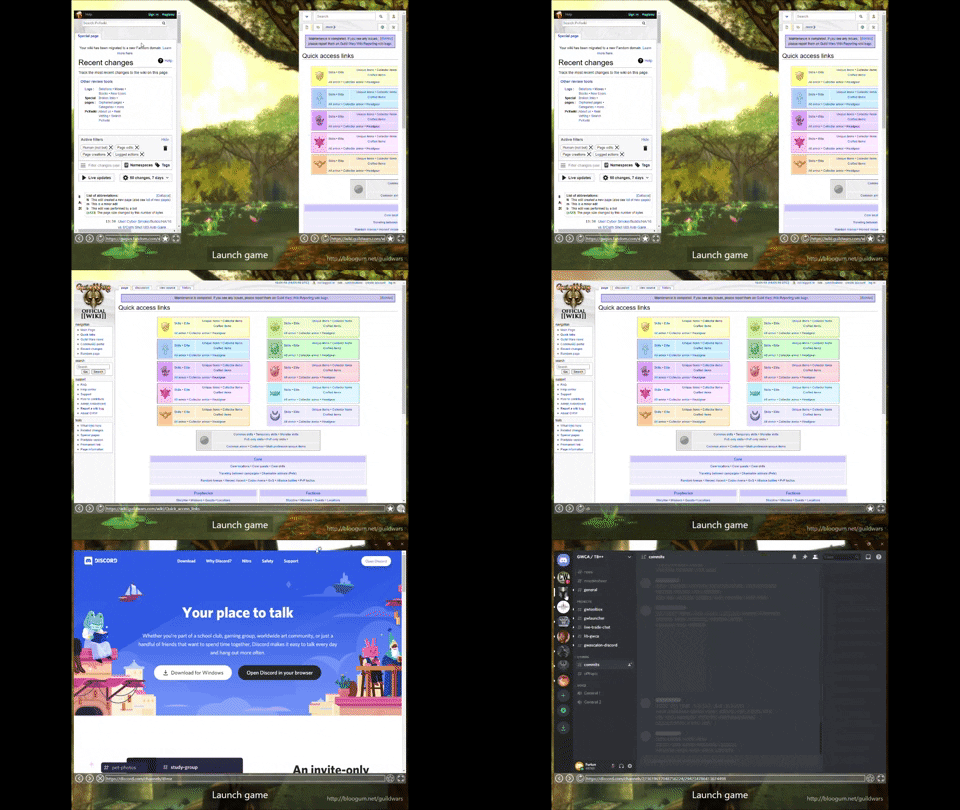
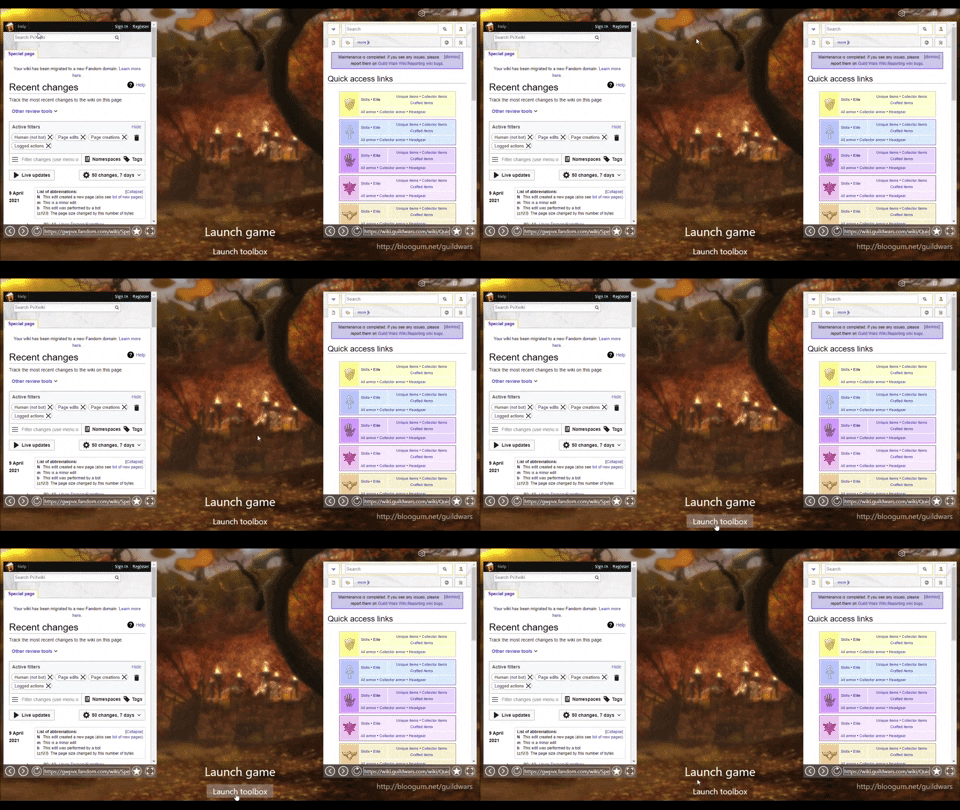
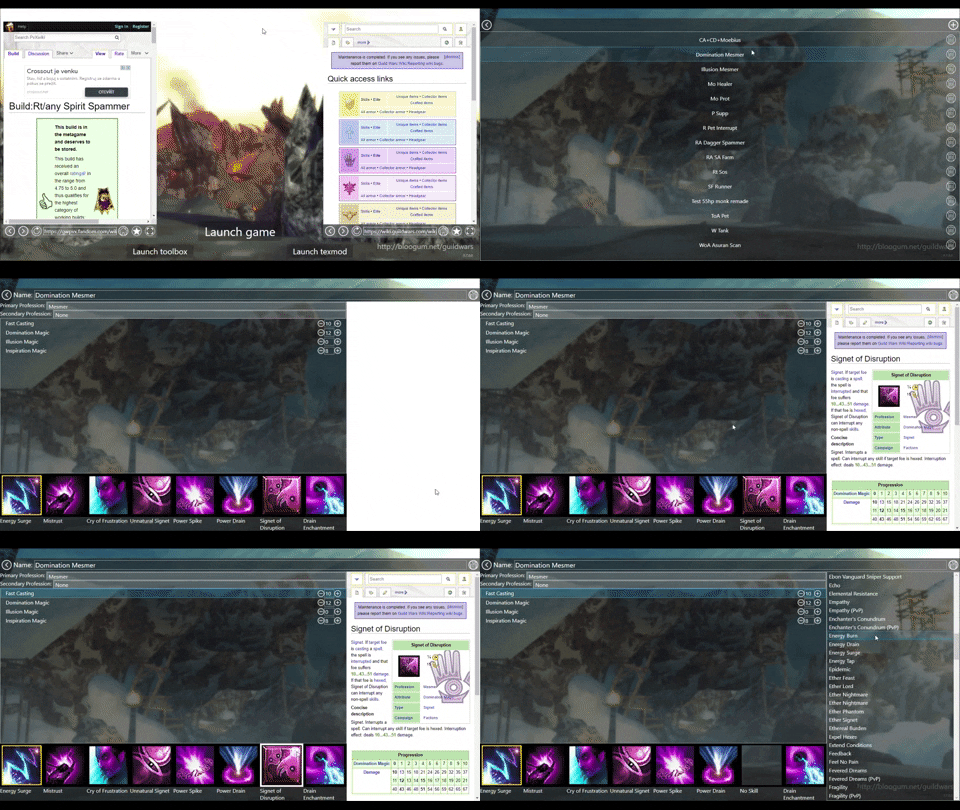
Features
Automatically detect if guildwars is running or not. Includes the ability to launch guildwars from the client.
Multibox support.
Manages multiple username and password combinations.
Manages multiple executables.
Ability to set a character name which gets autoloaded during launch.
Embedded browser set on useful pages or links.
Ability to set default page for each of the two browser windows.
Rotates screenshots from "Screenshots" folder. If no screenshots are present in the folder, downloads and rotates images from http://bloogum.net/guildwars (link to page is visible when showing images from the website).
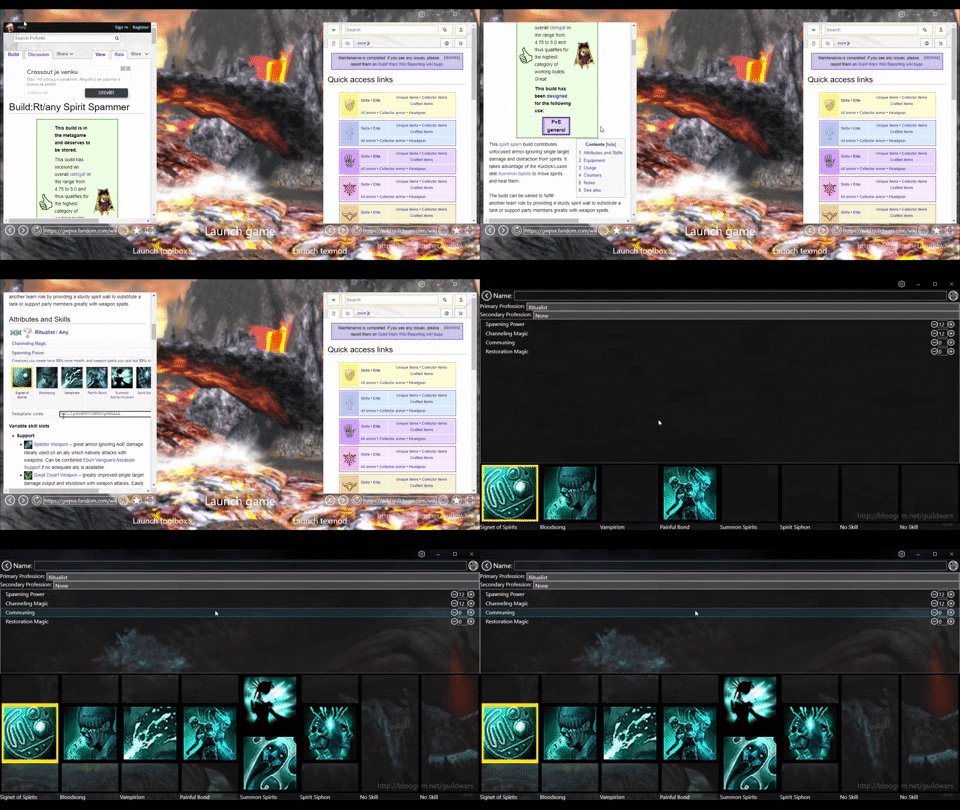
Manages build templates. Load/save builds from the guildwars build folder. Ability to dynamically load build templates from the embeded browsers. Opens embeded browser for professions, attributes and skills when selected.
Screen placing/binding. If enabled, places guildwars executable on desired screen at launch.
Shortcut management. Can manage automatically shortcuts to desired folder.
Examples/Usage
Settings.
To modify any settings, press the settings button on the titlebar

Settings categories.
To adjust functionality, choose one of the settings categories

Using the embeded browsers.
When in the main view, the browsers open the default/prefferred page. To change the prefferred page, navigate to it using one of the browsers and press the star button. The current loaded page will become the default for the selected browser. Preffered page can also be selected from settings.

Displaying screenshots
To display other images than the ones retrieved from "http://bloogum.net/guildwars", place images in the Screenshots folder, next to the Daybreak.exe executable. If the folder doesn't exist yet, either create it or run the launcher once so that it gets created automatically.
Account management
To adjust accounts, go into account settings. Clicking on the star next to an account sets it as the current account.

Guildwars executable management
To adjust executables, go into Guildwars settings. Clicking on the star next to the executable path sets it as the current executable.

Multibox/Multilaunch support
To enable multiboxing (multi-launch), go into Experimental settings. Then, switch between executables/accounts and launch them.

Build management / Template management
To manage builds, go into Settings, Builds. Here you can select/remove builds.

Build editor
Doubleclick on one of the builds to enter the template management view. Here you can click on skills to open the wiki page of the skill. You can adjust professions, attributes and add/remove skills.

Dynamically load build from browser
To dynamically load a build, while browsing in the browsers from the main page, select and rightclick any text on the page that might be a template. If it is a template, the client will open a context menu with a button called "Load build template". Click on that button to load the build and switch to build template view.

Screen selection/binding
To launch the guildwars executable to a specific screen, open Settings, Launcher Settings either fill in the "Desired screen id",
 or use the selection view. If you press Test button on screen selection view, it will automatically move the currently running guildwars to the selected screen.

Shortcuts
To manage launcher shortcuts, use the Settings, Launcher Settings menu. If you want a different folder than the desktop, use the "Shortcut folder" setting to change to the desired place. By toggling "Shortcut placed" toggle, a shortcut will be created/deleted.
